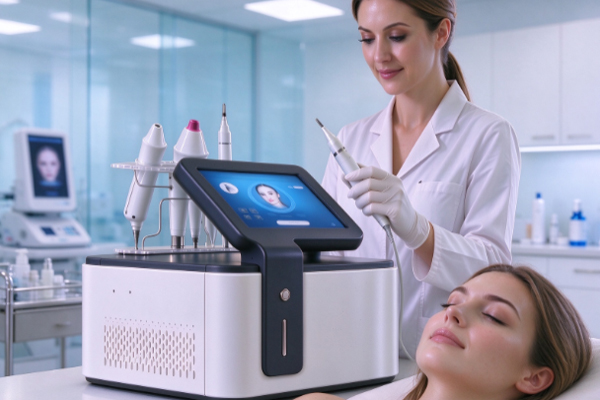
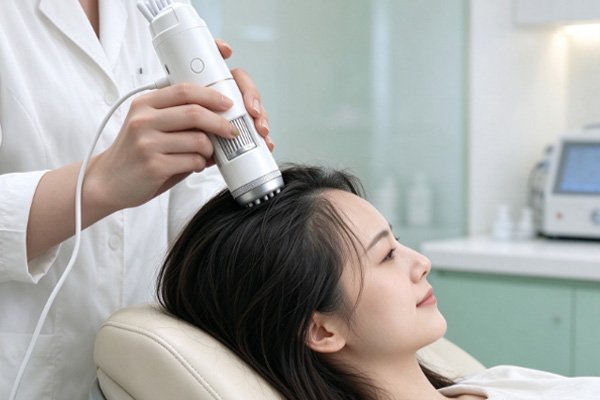
A USB hair analyzer is a diagnostic tool that connects to a computer, tablet, or other compatible device through a USB interface to examine the condition of the scalp and hair. Before using it for the first time, users need to complete basic setup procedures, including device connection, software installation, image display, and imaging parameter adjustment, to ensure that the device can capture and display hair images properly. Different USB hair analyzer models may vary in interface type, magnification, lighting methods, compatible software, and image storage functions. Therefore, initial setup should follow the device manual and the actual features available in the software. Some products support plug-and-play operation, while others require dedicated drivers or application software. Before conducting an official examination, it is recommended to inspect the device, test the connection, and calibrate the imaging settings. Image parameters can then be adjusted according to the examination requirements to prevent unstable connections, insufficient lighting, or improper focus from affecting observation results.
Check the Device and Establish the Connection
Confirm USB Interface and Device Compatibility
Before use, inspect the USB hair analyzer’s housing, connection cable, lens, and lighting components to ensure that they are in good condition. Confirm that the computer or other terminal device has a compatible connection interface. Some models use a USB-A interface, while others use USB-C. If the terminal device has a different interface, use a compatible adapter and confirm that it supports the data transmission required by the analyzer rather than providing power only.
Install Drivers or Compatible Software
Check software requirements: Read the product manual to determine whether the device requires dedicated drivers, image capture software, or a mobile application. Prioritize software provided by the device manufacturer and avoid installing programs from unknown sources.
Connect the analyzer: Connect the device according to the instructions in the manual. If the product requires driver installation before connection, complete the installation first and then connect the analyzer.
Check device recognition: Open the compatible software and check whether it recognizes the camera and displays a live image correctly. If the software cannot detect the device, reconnect the cable, check interface permissions, or confirm whether another program is already using the camera.
After establishing the connection, do not begin the official examination immediately. First, confirm that the software can read images consistently, the device lighting works properly, and the display does not experience persistent lag or frequent interruptions. Proceed to the next setup stage only after these conditions have been verified.
Adjust Imaging Parameters and Examination Position
After successfully connecting the USB hair analyzer, adjust image clarity, lighting brightness, magnification, and examination distance. These settings directly affect the visibility of hair texture, the scalp surface, and areas surrounding the hair follicles. It is recommended to preview the image using a regular test object first, confirm that the device can produce stable images, and then begin examining the scalp or hair.
Set the Focus and Magnification
The primary purpose of focus adjustment is to make the examination image clear, while magnification allows users to observe areas of different sizes. When using the device for the first time, start with a lower magnification to examine the overall condition of the scalp or hair, then gradually adjust it according to the examination target.
Adjust the examination distance: Position the lens at the recommended working distance specified in the manual, avoiding direct contact between the lens and the scalp. Keep handheld devices stable. For models with a stand, secure the stand first and then adjust the lens position slowly.
Rotate the focusing component: Slowly turn the focus ring or focus adjustment wheel until hair outlines and scalp textures appear clearly on the screen. If the image is blurry, avoid turning the focusing component rapidly or repeatedly.
Check the magnification: If the software supports magnification adjustment, select an appropriate level based on the observation area. Lower magnification is suitable for viewing larger areas, while higher magnification is useful for examining local details. However, higher magnification does not necessarily mean better image quality.
Adjust LED Lighting and Image Display
USB hair analyzers are usually equipped with LED lights to provide additional illumination for the examination area. When the lighting is too dim, the image may lack detail. Excessive brightness can cause localized overexposure, making it difficult to identify subtle textures on the scalp or hair. It is recommended to start with low or medium lighting, check the actual display, and gradually increase or decrease the brightness as needed. If the device supports software adjustments for image brightness, contrast, and resolution, prioritize clear images and natural colors. Avoid excessive adjustments that may distort colors. When comparing examination results from different dates, maintain similar lighting levels, examination distances, and magnification settings whenever possible. This makes image comparisons easier and reduces visual differences caused by changes in the environment.
Configure Image Storage and Examination Records
After completing the device connection and imaging adjustments, check the software’s photo capture, video recording, file storage, and image naming functions. For beauty salons, scalp care centers, and professional hair examination service providers, clear image records help staff compare observations from different dates and organize customer service files.
Select Image Formats and Storage Locations
Open the software settings page and check whether you can specify the photo storage directory, image format, and file naming method. Common image formats include JPG and PNG. The available formats depend on the device and software version.
Choose a storage directory: Save images in an easily accessible folder and confirm that the computer has sufficient storage space.
Test image quality: Take a test photo and check whether the file has been saved successfully, the image is clear, and no unusual discoloration or blurring appears when the file is opened.
Establish a record-keeping system: Use the examination date, customer number, and examination area in file names to reduce confusion. When customer personal information is involved, obtain the necessary authorization and restrict access to examination records to authorized personnel.
Check Resolution and Image Capture Functions
If the software provides resolution settings, select an appropriate image size according to the examination task. Higher-resolution images generally retain more pixel information but also require more storage space. Actual imaging performance also depends on sensor capabilities, lens quality, focus, and lighting conditions. Before official use, test both the live preview and still-image capture functions. If the device supports video recording, check whether the video plays continuously and the image remains stable. Some USB hair analyzers also support measurement, image annotation, or comparison functions. These features are not available on every model and should be enabled according to the actual software configuration.
Frequently Asked Questions
What Should I Do If the USB Hair Analyzer Displays No Image After Connecting to a Computer?
Answer: First, check whether the USB interface supports data transmission. Then confirm that the software has selected the external hair analyzer rather than the computer’s built-in camera. If no image appears, check camera access permissions, drivers, and the connection cable. Close other software that may be using the camera. Plug-and-play models may not require separate driver installation, so always refer to the device manual for specific requirements.
Why Are the Images from the Hair Analyzer Not Clear Enough?
Answer: Common causes include incorrect focus, an unsuitable examination distance, a dirty lens surface, or lighting that is too dim or too bright. Check the lens, adjust the examination distance, focus slowly, and optimize LED brightness in sequence. If the image remains blurry, check the software resolution settings and inspect the device for potential faults.
Does the Device Need to Be Calibrated Before First Use?
Answer: If the device is used only to observe scalp and hair images, adjusting the focus and lighting is usually sufficient. However, if the device provides dimensional measurements, diameter calculations, or scale functions, use a standard calibration ruler or the designated calibration tool according to the manual. Measurement results should not be treated as accurate dimensional data before calibration has been completed.
When using a USB hair analyzer for the first time, it is recommended to prepare the device by checking the hardware, connecting the equipment, installing the software, adjusting the imaging settings, and configuring the storage functions in sequence. During connection, confirm interface and software compatibility. For imaging, pay particular attention to focus, magnification, and LED brightness. For record management, verify the photo storage path, image quality, and file organization rules. Before the official examination, perform a complete test capture to ensure that the image is clear, the lighting is stable, and the image can be saved successfully. During daily use, avoid touching the lens directly with your fingers, clean the device according to the manufacturer’s instructions, and maintain appropriate cleaning and hygiene procedures when examining different customers. For scalp care facilities and professional equipment buyers, establishing standardized initial settings and operating procedures can improve equipment efficiency, maintain consistency in examination records, and provide a reliable basis for subsequent image reviews and customer communication.