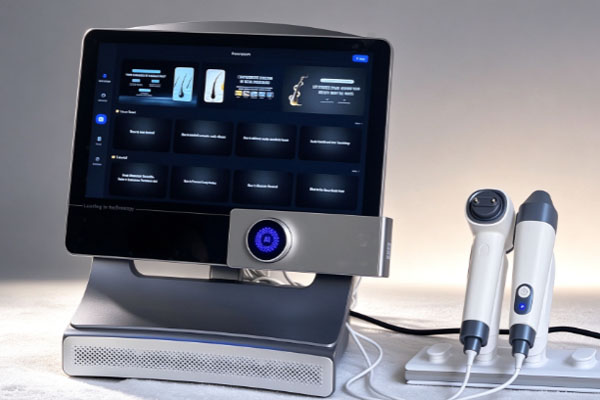
A USB hair analyzer is a detection device used to observe the scalp, follicular openings, and hair condition. It typically connects to a computer through a USB interface and transfers images captured by the lens to a display device, allowing users to view magnified details of the scalp and hair. These devices are commonly used in beauty care, scalp examinations, hair condition observation, and related professional services. Properly connecting the device to a computer is essential for normal operation. Incompatible interfaces, incorrectly installed drivers, improper software settings, or unstable USB connections may cause problems such as device recognition failure, missing images, or blurry displays.
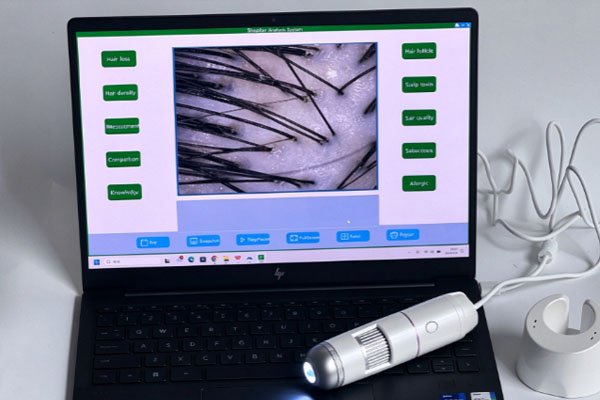
Different USB hair analyzer models may vary in interface design, power supply methods, operating software, and compatible operating systems. Therefore, users should check the product manual before connecting the device to confirm the supported computer operating systems, USB interface types, and software requirements. Some devices can be used immediately after connection, while others require dedicated software or drivers. Following the correct sequence for connection, software configuration, and image testing can reduce repeated plugging and unplugging and prevent operating errors, helping the device maintain stable performance.
Prepare Before Connecting and Confirm Computer Compatibility
Before connecting a USB hair analyzer to a computer, confirm that all necessary accessories are available, the interface type is correct, and the computer meets the basic operating requirements. Although many USB devices use standard interfaces, this does not mean that every model is compatible with every computer. Some products require dedicated drivers or accompanying image software, while others may be limited by the operating system version, USB port power capacity, or software permissions.
Check the Interface, Accessories, and System Requirements
Before connecting the device, locate the supplied data cable, user manual, and information about the accompanying software. Confirm whether the device requires an independent power supply. If the device has a fixed USB cable, inspect the cable and plug for damage, bending, or looseness. If a detachable data cable is used, ensure that it supports data transmission rather than charging only.
Confirm operating system compatibility: Check whether the product supports the current version of Windows or macOS. Some models may only support specific operating systems, so an identical interface alone does not guarantee that the device will function properly.
Check the USB interface: Select a compatible USB port or adapter according to the device instructions. If the computer only has USB-C ports while the device uses a USB-A plug, use a compatible data adapter that meets the product requirements.
Prepare the accompanying software: If the manufacturer provides dedicated viewing software or drivers, obtain them from the supplied product documentation or official channels. Avoid installing software from unknown sources.
Connect the USB Hair Analyzer in the Correct Order
After completing the preparations, connect the device to the computer. The connection sequence may vary by model, so the manufacturer’s operating instructions should take priority. If the product requires driver installation before connection, install the drivers first. If the manual instructs users to connect the device before installing the software, follow the specified procedure. Proper connection can reduce problems such as system recognition failures and repeated device disconnections.
Connect the Device and Confirm Its Power Status
Place the USB hair analyzer on a stable, dry work surface and ensure that the lens does not collide with hard objects. When connecting the device, hold the USB plug and insert it steadily after confirming the correct orientation. Do not force the plug into the port or adjust the device position by pulling the cable. After connection, check whether the indicator light turns on, the illumination activates, or other signs of normal operation appear. Note that some models do not have a separate indicator light, so illumination alone should not be used to determine whether the connection is successful.
Prioritize the computer’s built-in USB ports: If the device is not recognized, try another compatible port on the computer first rather than immediately using a docking station or an unverified adapter.
Maintain a stable connection: Arrange the data cable properly to prevent pulling, compression, or repeated bending. If the connection is frequently interrupted, inspect the plug, port, and cable for abnormalities.
Avoid adding power equipment unnecessarily: If the device requires an independent power supply, use the method recommended by the manufacturer. Do not connect power adapters that do not meet the specified requirements.
Install the Software and Configure Image Display Settings
After physically connecting the device, confirm whether the computer can correctly recognize the USB hair analyzer and display images through the appropriate program. For models that require dedicated software, complete the installation according to the user manual and restart the computer if necessary. Models that use standard video device interfaces may require users to select the corresponding device in compatible camera software.
Check Device Recognition and Image Capture Status
Open the accompanying product software and check whether the corresponding hair analyzer or camera name appears in the device list. If the software provides settings for image sources, resolution, illumination, or focus, adjust them according to the actual inspection requirements. Some software may require permission to access the camera. Otherwise, images may not appear even when the device is connected. After a successful connection, point the device at a suitable observation target and check whether the image updates normally. If the image is too dark, blurry, or noticeably delayed, check the lens cleanliness, focus, lighting status, and software settings in sequence rather than immediately assuming that the device is damaged.
When Connection Fails, Troubleshoot in the Following Order
The computer cannot recognize the device: Try another compatible USB port, check the data cable connection, and confirm whether driver installation is required. On a Windows computer, use Device Manager to check for unknown devices or device error notifications.
The software cannot display an image: Confirm that the correct imaging device has been selected, check whether the software has permission to access the camera, and close other programs that may be using the same camera.
The image is intermittent or the device repeatedly disconnects: Check whether the interface is loose or the cable is damaged. Avoid connecting through unstable expansion devices whenever possible. If necessary, safely disconnect the device before reconnecting it.
There is no illumination or image after connection: Confirm whether the product requires the lighting to be activated separately, a control button to be adjusted, or specific software settings to be completed. If the problem persists, consult the user manual or contact the supplier.
Precautions During Use
After connecting the USB hair analyzer to a computer, keep the device and data cable in stable positions and avoid frequent unplugging during inspections. Depending on the functions supported by the product, users can adjust the focus, illumination intensity, and image parameters to observe visible scalp and hair features more clearly. At the same time, image clarity depends not only on the computer connection but also on the lens specifications, viewing distance, lighting conditions, and the performance of the device itself.
Frequently Asked Questions
Q: Why is there no image after plugging a USB hair analyzer into a computer?
A: Common causes include missing drivers, incorrect camera selection in the software, restricted computer permissions, poor USB contact, or device incompatibility. Check the product manual first to confirm the system requirements, then try another USB port and review the software settings. If the device requires dedicated drivers, install them through the manufacturer’s official channels.
Q: Do USB hair analyzers require driver installation every time they are connected to a computer?
A: Usually, they do not. Once the drivers have been installed correctly, the computer can generally recognize the device during subsequent connections. However, if recognition problems occur after switching computers, reinstalling the operating system, or upgrading the system, compatible drivers may need to be reinstalled. The specific requirements depend on the device model and operating system.
Q: Can a USB hair analyzer connect to a smartphone or tablet?
A: This depends on the product’s interface design, operating system compatibility, power requirements, and accompanying software. Even if a smartphone has a USB-C interface, this does not guarantee that it can recognize the device. Before connecting, confirm whether the manufacturer explicitly supports mobile devices and check whether a dedicated application or data adapter is required.
Q: Why are the images still unclear after a successful connection?
A: First, check the lens for dust or oil residue, confirm that the focus is adjusted correctly, and adjust the lighting and image settings according to the device instructions. If the images remain blurry on the computer, also check the software parameters, viewing distance, and imaging capabilities of the device itself. When cleaning the lens, use tools suitable for optical surfaces to avoid scratching the lens.
Properly connecting a USB hair analyzer requires several steps, including compatibility checks, interface inspection, device connection, software installation, and image testing. Before use, understand the supported operating systems, USB interface types, and driver requirements. During connection, ensure that the plug is correctly oriented and avoid forcing the plug or pulling the cable. After connection, check device recognition, software permissions, and image display. If the device cannot be recognized, the image appears abnormal, or the connection is interrupted, troubleshoot the interface, drivers, software settings, and device status in sequence.
If you are purchasing a USB hair analyzer for scalp examinations, beauty care, or related business operations, choose a suitable device based on your daily application scenarios and confirm the connection method, accompanying software, and compatibility requirements in advance. Customers with bulk purchasing, customized configuration, or accessory supply requirements can consult the supplier about product specifications, computer connection requirements, driver support, and after-sales service. This helps ensure that the device integrates smoothly into the existing work environment and meets daily inspection and image observation needs.